
Head Unit Stuck On Honda Logo
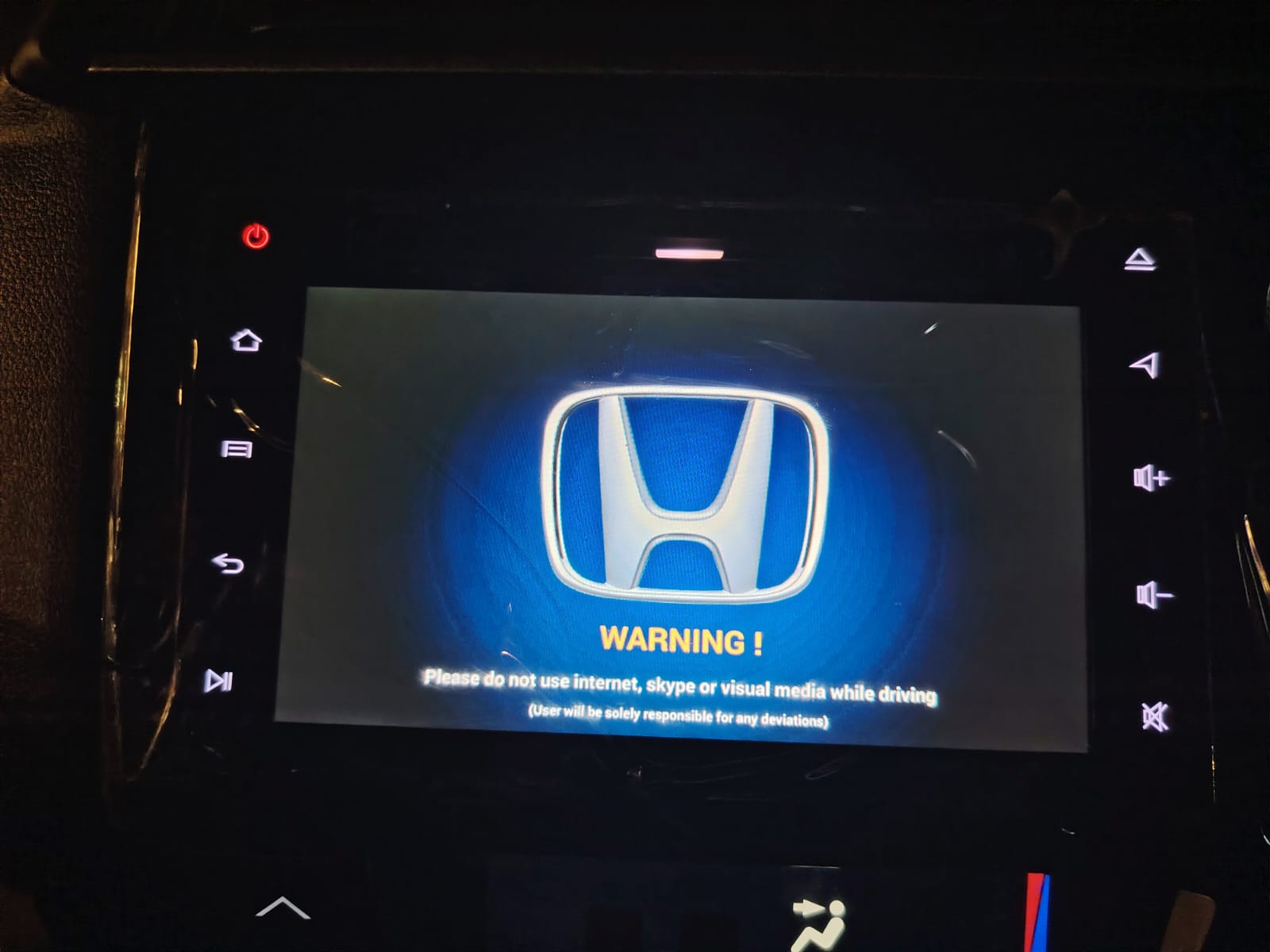
Head Unit Stuck On Honda Logo
How to Fix Honda BR-V Infotainment System Stuck on Logo
Getting your Honda BR-V infotainment system stuck on the logo screen (a "boot loop") is a frustrating experience, especially when you rely on it for navigation or entertainment. Whether it happened after an update or for no apparent reason, it is usually a software glitch rather than a hardware failure.
Before heading to the dealership, try these proven DIY methods to get your system back to life.
1. The "Hidden" Keyboard Shortcut (Alt + PrintScreen + I)
For some Honda infotainment systems that run on a specific Android architecture, you can trigger a "Force Reboot" by connecting a standard USB keyboard to the car's USB port.
Step 1: Plug a USB keyboard into the car's media/charging port.
Step 2: While the system is stuck on the logo, press and hold Alt + PrintScreen.
Step 3: While holding those, press the 'I' key.
The Result: This is a kernel-level command that tells the processor to ignore the current freeze and perform an immediate hardware reboot.
2. The Physical Reset Button
If you don't have a keyboard handy, look for the RST or RES pinhole on the face of the head unit.
Insert a paperclip or SIM ejector tool into the hole and press and hold for 5-10 seconds. The screen should go black and attempt to restart the OS.
3. Hard Reset: Wiping Cache and Partition (The "Clean Slate" Method)
If your system reboots but gets stuck on the logo again, you likely have corrupted data in the cache. You need to enter the Android Recovery Menu to perform a deep clean.
How to enter Recovery Mode:
1. Turn the car's ignition to the ACC or ON position.
2. While the system is trying to boot, use the physical Reset (RST) pinhole.
3. Immediately after releasing the reset button, tap the screen repeatedly with five fingers (or on some units, hold the Power button).
4. A text-based menu (Android Recovery) should appear.
Wiping the Data:
Use the volume buttons (or the Power button) to navigate to "Wipe Cache Partition". Confirm the selection. This clears temporary files without deleting your apps.
If that doesn't work, select "Wipe Data/Factory Reset". Note: This will delete all your saved settings, Bluetooth pairings, and installed apps, but it is the most effective way to fix a boot loop.
Once finished, select "Reboot System Now".
4. The Battery Discharge (Hard Power Cycle)
Sometimes the system needs a total power "drain" to clear its memory. Turn off the engine and disconnect the Negative (–) terminal of your car battery for 15 minutes. Reconnect the terminal and start the car. This forced power-down often resets the head unit’s internal logic.
When to Visit a Professional
If you have tried the keyboard shortcut, the reset button, and the recovery menu wipe, but the screen still won't move past the logo, the internal eMMC (storage chip) may have failed, or the firmware may need to be re-flashed via a specialized USB tool.
Getting your Honda BR-V infotainment system stuck on the logo screen (a "boot loop") is a frustrating experience, especially when you rely on it for navigation or entertainment. Whether it happened after an update or for no apparent reason, it is usually a software glitch rather than a hardware failure.
Before heading to the dealership, try these proven DIY methods to get your system back to life.
1. The "Hidden" Keyboard Shortcut (Alt + PrintScreen + I)
For some Honda infotainment systems that run on a specific Android architecture, you can trigger a "Force Reboot" by connecting a standard USB keyboard to the car's USB port.
Step 1: Plug a USB keyboard into the car's media/charging port.
Step 2: While the system is stuck on the logo, press and hold Alt + PrintScreen.
Step 3: While holding those, press the 'I' key.
The Result: This is a kernel-level command that tells the processor to ignore the current freeze and perform an immediate hardware reboot.
2. The Physical Reset Button
If you don't have a keyboard handy, look for the RST or RES pinhole on the face of the head unit.
Insert a paperclip or SIM ejector tool into the hole and press and hold for 5-10 seconds. The screen should go black and attempt to restart the OS.
3. Hard Reset: Wiping Cache and Partition (The "Clean Slate" Method)
If your system reboots but gets stuck on the logo again, you likely have corrupted data in the cache. You need to enter the Android Recovery Menu to perform a deep clean.
How to enter Recovery Mode:
1. Turn the car's ignition to the ACC or ON position.
2. While the system is trying to boot, use the physical Reset (RST) pinhole.
3. Immediately after releasing the reset button, tap the screen repeatedly with five fingers (or on some units, hold the Power button).
4. A text-based menu (Android Recovery) should appear.
Wiping the Data:
Use the volume buttons (or the Power button) to navigate to "Wipe Cache Partition". Confirm the selection. This clears temporary files without deleting your apps.
If that doesn't work, select "Wipe Data/Factory Reset". Note: This will delete all your saved settings, Bluetooth pairings, and installed apps, but it is the most effective way to fix a boot loop.
Once finished, select "Reboot System Now".
4. The Battery Discharge (Hard Power Cycle)
Sometimes the system needs a total power "drain" to clear its memory. Turn off the engine and disconnect the Negative (–) terminal of your car battery for 15 minutes. Reconnect the terminal and start the car. This forced power-down often resets the head unit’s internal logic.
When to Visit a Professional
If you have tried the keyboard shortcut, the reset button, and the recovery menu wipe, but the screen still won't move past the logo, the internal eMMC (storage chip) may have failed, or the firmware may need to be re-flashed via a specialized USB tool.